Organize Research Notes in a Knowledge Tree
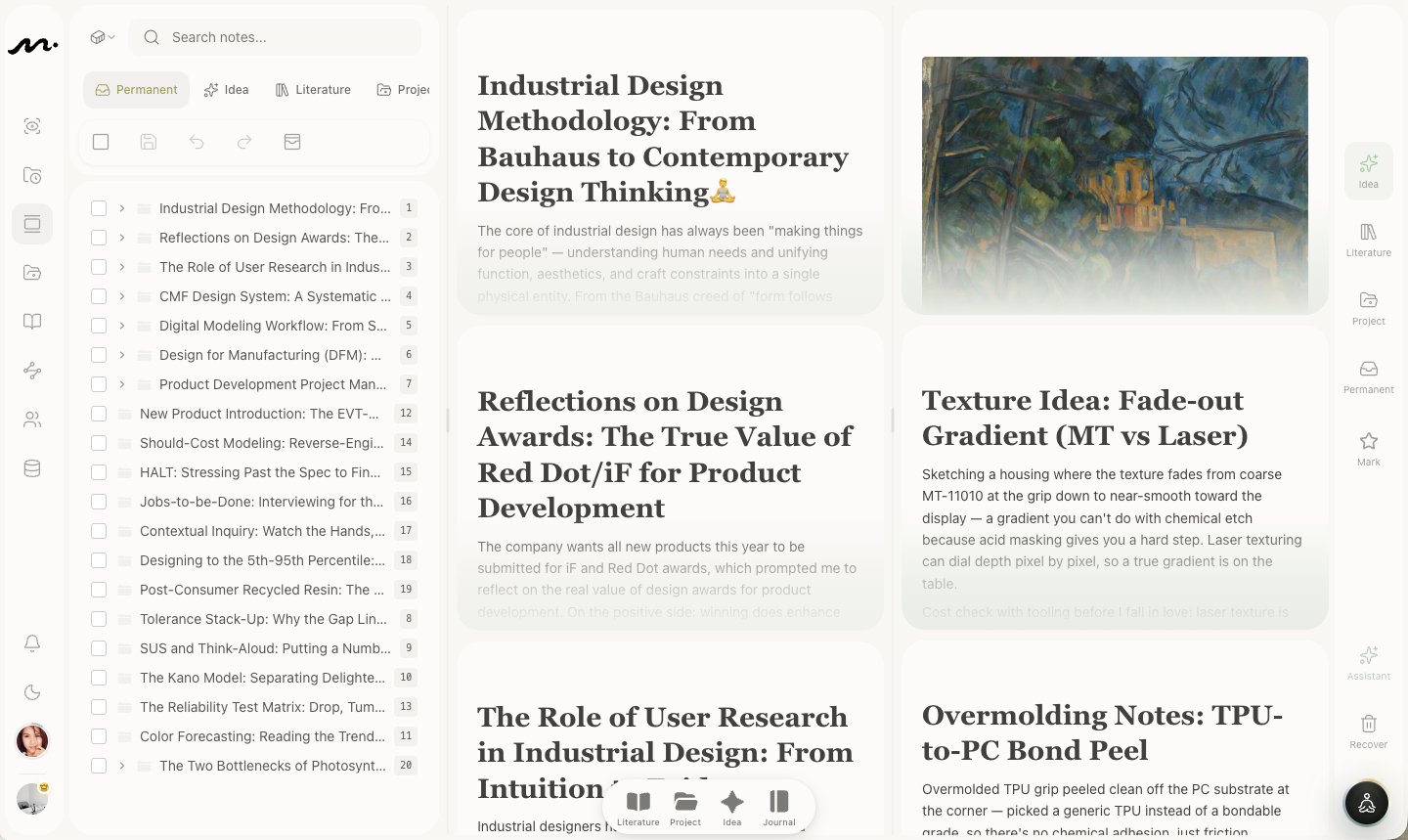
Organize does one job: take fleeting ideas and literature notes waiting at the door and place them, one by one, into the permanent box. It is the only step in the method that asks you to sit down and decide.
For note-type definitions, see Research Notes, Connections, and Knowledge Trees.
Layout: three columns plus a thin rail
| Position | What it is | Controlled by |
|---|---|---|
| Column 1 | Knowledge tree—the box's directory; Luhmann numbers grow here | The four type buttons on the left |
| Column 2 | Cards from that tree, opened out | Same |
| Column 3 | Material not yet in the box | The thin right rail |
| Right rail | Narrow icons switching which material column 3 shows | — |
Easy mistake: the four left buttons (Permanent / Fleeting / Literature / Project) switch the whole box. Tap Fleeting and columns 1–2 become fleeting notes—you no longer have a permanent tree to drop into. To browse fleeting or literature material, use the right rail. Keep the left on Permanent; change the rail. That is the organizing posture.
The right rail, top to bottom: Fleeting, Literature, Project, Permanent, Starred, then a divider, then Assistant and Trash. The first four change column-3 material; Starred filters starred notes; Trash opens the bin—you can also drag a card onto it to delete.

Daily ritual
- Leave the left type selector on Permanent so column 2 stays the box itself.
- Use the right rail to show Fleeting or Literature in column 3.
- Take the first card: is it clear enough? If not, rewrite; if not worth keeping, drag to Trash.
- When it is clear, add a topic tag first—untagged cards cannot be dragged; the system blocks and reminds you.
- Drag it onto the permanent note it belongs with in column 2.
- Choose placement: sibling (beside the target, e.g. 1 then 1a—press 1) or child (under the target, e.g. 1a1—press 2). Esc cancels.
- Open the new permanent note and type @ to link related notes that live on other branches.
Fleeting and literature notes move into permanent. Permanent into a project copies.

Two gates
- Before drag: untagged fleeting/literature notes cannot start a drag.
- On drop onto a permanent note: the source still needs a topic tag. A card with no topic and no place is paper you will not find again.
On a phone
Three bottom tabs replace the wide layout: Structure (tree), Organize, and Inbox. Same actions; two columns at a time.
Let AI suggest—not decide
The right-rail Assistant opens Organize's AI panel. It only suggests:
- Classification — which theme a raw note might belong to
- Links — which permanent notes may discuss the same idea
- Note checkup — where the current card is still unclear
You can apply "insert as child / sibling / link" from a suggestion and undo if wrong. A standing input at the bottom can turn any suggestion into a new fleeting note.
Do not outsource organizing. Which branch gets the number, and whether two cards should link, must be your judgment. Otherwise the box fills with sentences that sound right and no longer sound like you.
Related guides
- Getting Started — end-to-end path from source to draft
- Whiteboard — compare selected notes visually
- AI assistant — where memory and long tasks fit